The Ultimate Steam Download Guide: Fix Speeds and Master the Client
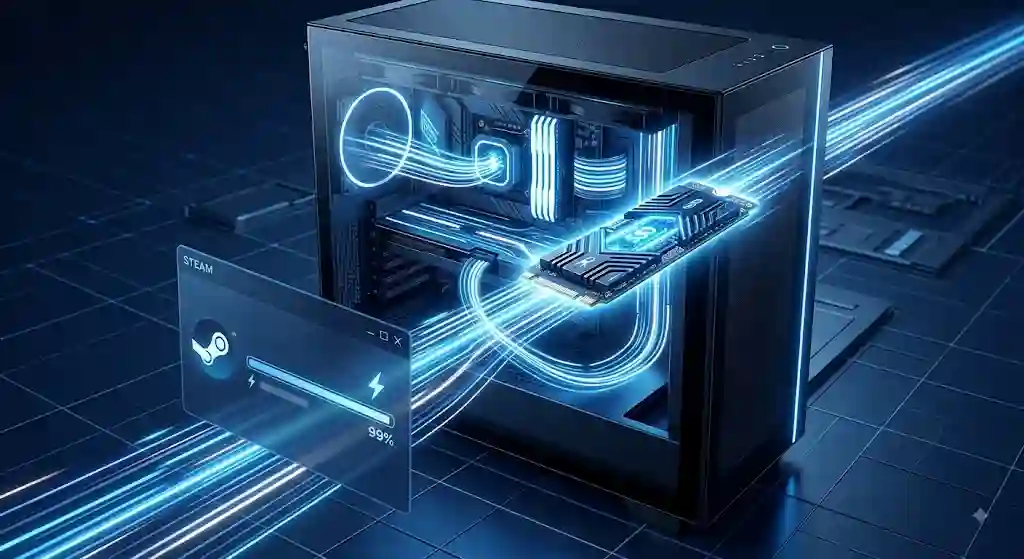
Slow speeds can ruin your excitement when you buy a brand-new game. You sit there watching a crawling progress bar while your friends are already in the match.
Getting your installation finished fast should not feel like a complex science project. A few quick adjustments to your client settings can unlock your full internet bandwidth instantly.
Whether you want to optimize your desktop app or manage handheld downloads, this guide reveals the exact tweaks to fix sluggish speeds forever.
Why Is Your Steam Download Slowing Down?
Download bottlenecks happen for several reasons, ranging from server congestion to hidden background apps. Steam download routes massive amounts of data through global servers that sometimes get overwhelmed during major events.
When a massive update drops for a popular title, local servers experience heavy traffic spikes. Changing your virtual location inside the settings often bypasses this congestion completely.
Your local hardware might also be choking the transfer speed. High-speed fiber internet requires a fast storage drive to unpack compressed game files simultaneously without stalling.
Internet Connection ──> Download Server ──> Disk Write Speed ──> Completed Game
Step-by-Step Settings to Maximize Transfer Speeds
[Steam Menu] ──> [Settings] ──> [Downloads] ──> [Select Optimal Server Region]
Optimizing your client takes less than two minutes and delivers immediate results. Open your settings menu and navigate directly to the dedicated transfer tab to start tweaking.
Clear your download cache first to flush out corrupt temporary files. This simple action restarts the client and often restores lost bandwidth immediately.
- Change Download Region: Pick a nearby city that is not currently in peak evening hours.
- Remove Bandwidth Limits: Ensure the option to throttle speeds is toggled off.
- Allow Downloads During Gameplay: Keep updates running even while playing lightweight indie titles.
- Disable Throttle While Streaming: Stop the client from choking transfers when using remote play features.
Comparing Hardware Performance Across Platform Devices
Different gaming hardware handles incoming data streams at varying performance levels. Solid-state drives process packed game files significantly faster than traditional spinning hard drives.
Portable handhelds and desktop rigs process data differently based on power limits and thermal conditions. The table below illustrates standard performance metrics across popular modern gaming devices.
| Device Type | Drive Format | Average Download Cap | Disk Bottleneck Risk |
| Desktop Gaming PC | NVMe M.2 SSD | Unlimited / Fiber Speeds | Very Low |
| Steam Deck OLED | Internal NVMe SSD | Up to 800 Mbps | Low |
| Steam Deck (Base) | MicroSD Card | Around 100 Mbps | High |
| Legacy Desktop | 7200 RPM HDD | Around 150 Mbps | Very High |
Handheld gaming devices like portable PCs often face storage write limits when downloading directly to expandable memory cards. Installing large titles directly to the internal NVMe drive ensures smooth transfers without thermal throttling.
Managing Your Library and Handling Game Refunds
Managing your digital library efficiently saves storage space and keeps your storage drives running fast. Keeping your drives under eighty percent capacity prevents performance degradation during large write operations.
Sometimes a newly installed title fails to run smoothly or simply does not match your expectations. Valve offers a straightforward return policy if you act quickly after your purchase.
Steam Refund Rule: You can request a full refund for any game if you submit the request within 14 days of purchase and have played the title for less than 2 hours total.
How to Request a Game Refund
- Navigate to the official support portal inside your browser or desktop client.
- Log into your account and select the recent purchase you wish to return.
- Select the specific issue you encountered, such as performance problems or accidental purchase.
- Choose your preferred refund destination, either your original payment method or wallet balance.
- Submit the ticket and await automated confirmation via your account email address.
How to Prepare for Seasonal Discount Events
Buying games at full price is rarely necessary if you time your purchases around major seasonal events. Valve runs massive storewide sales throughout the year where major titles drop by eighty percent or more.
Adding anticipated titles to your personal wishlist alerts you instantly via email whenever a price drop occurs. This strategy prevents impulse buying and helps you budget for massive seasonal discount windows.
- Spring Sale: Typically occurs in mid-March with huge discounts across all genres.
- Summer Sale: The largest mid-year event, usually starting in late June.
- Autumn Sale: Held during late November, perfect for grabbing fall releases.
- Winter Sale: The massive holiday event running from late December through early January.
Monitoring player statistics charts helps you identify which discounted titles maintain active multiplayer communities. Checking current concurrent player counts ensures you never buy a multiplayer game with empty server lobbies.
Frequently Asked Questions
Is Steam down right now?
You can check real-time network status by visiting third-party trackers like SteamDB or checking official social channels. If regional servers drop offline, client transfers will pause automatically until connections restore.
How do I appear offline on Steam while downloading?
Click the “Friends & Chat” tab in the bottom right corner of your client window. Click the drop-down arrow next to your profile username and select “Offline” or “Invisible” to hide your online status from friends.
How do I fix corrupt download files?
Right-click the affected game in your library, select “Properties,” and navigate to “Installed Files.” Click “Verify integrity of game files” to scan and repair missing or corrupted installation data automatically.
Does downloading games use high CPU power?
Yes, because game files are heavily compressed to reduce file sizes over the internet. Your processor must decompress these files simultaneously while writing them to your storage drive.
Why does my download speed drop to zero MB/s?
This usually means your computer disk is busy unpacking downloaded data. The client temporarily pauses the incoming stream to let your storage drive finish writing current files to disk.
Final Verdict for Peak Performance
Getting maximum transfer speeds boils down to removing local bottlenecks and picking optimal server routes. Keeping your storage drives optimized ensures your hardware processes incoming data without stuttering.
Tweak your bandwidth settings today, clear out your cached data, and enjoy lighting-fast installations on all your favorite games.